



Mobile Banking FAQ

(Version: HB_06_13)

Mobile Banking

Mobile Banking
 
  1. What is Mobile Banking?
  2. What account types can I view with Mobile Banking?
  3. What transactions can I initiate with Mobile Banking?
  4. How do I sign up for Mobile Banking
  5. How do I access mobile banking on my phone's browser?
  6. I activated mobile banking on my phone's browser. Why am I being asked to activate again?
  7. Is mobile banking supported on my phone?
  8. How do I install the downloadable application?
  9. How much does this service cost?
Text Banking
 
  1. What is text banking?
  2. Can I use text banking and mobile web or app banking on my phone?
  3. Is text banking supported on my phone?
  4. Will I receive unsolicited text messages?
  5. What are the text banking commands?
General
  1. Is Hancock Mobile Banking secure?
  2. Which mobile phone carriers are supported?
  3. Do I need a text message or data plan?
  4. I'm not enrolled in e-Banking. Can I still use Mobile Banking?
  5. What is Activation?
  6. How do I get an activation code?
Troubleshooting
  1. I enrolled my phone number but did not receive a text message. What should I do?
  2. I received an activation code but never used it. What do I do now?
  3. What happens if I get a new phone or change phone numbers?
  4. Can I use Mobile Banking or Text Banking on more than one phone?
  5. What if my phone is lost or stolen?

More questions? Contact us at: 1-800-448-8812

When contacting customer service, please use a telephone other than the cell phone you use for Mobile Banking. This will allow for easy processing of your request.

Return to Top


Mobile Banking


Q: What is Mobile Banking?

A:

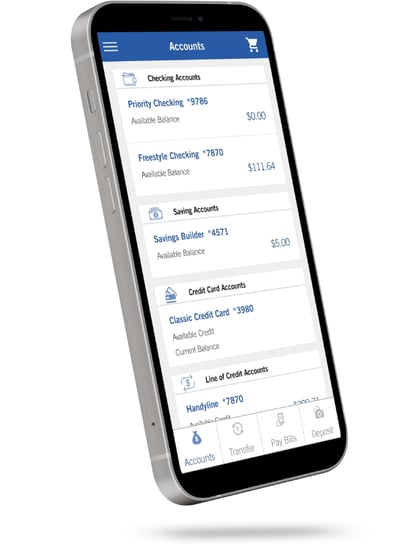
Mobile Banking allows you to access your accounts using your mobile phone.

1. Web or App Based Mobile Banking
With Web or App mobile banking, you can access your accounts using either your phone's web browser or by downloading the Hancock Mobile Banking App. Both are fast and secure ways to visit your financial information.

2. Text Banking
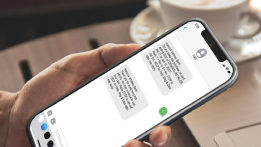
Use your phone's texting feature to bank on the go. Texting simple commands to Hancock's short code (99544) gives you a fast and easy way to view your account balance or get a summary of recent transactions.

Q: What account types can I view with Mobile Banking?

A:

With Hancock Mobile Banking, you can access information for Checking, Savings, CD's and Loan Accounts.

Q: What transactions can I initiate with Mobile Banking?

A:

Mobile Banking allows you to view your balance, view transaction history, pay bills (Web / App only), and transfer funds between accounts.  You can also use mobile banking to locate Hancock Bank branches and ATMs!

Q: How do I sign up for Mobile Banking?

A:

Logon to your e-Banking account and select Mobile Banking in the first row of options.  Follow the online instructions to enroll in and activate your mobile phone.  Once you’ve activated your mobile phone, you can access Mobile Banking anytime by visiting https://Hancockbank.HB2GO.mobi. Or, if you would like assistance enrolling in Mobile Banking, feel free to contact Customer Service.

Q: How much does this service cost?

A:

There is no bank service charge for Mobile Banking. Check with your mobile provider regarding message and data rates that may apply.

Q: I've already activated my phone. Why am I being asked to activate again?

A:

During activation, a "cookie" is stored on your phone's browser. This allows the system to remember that your phone has already been activated. Some phones may require you to enable cookies or periodically erase them, requiring re-activation. If you are experiencing this issue, check your phone settings to ensure that cookies are enabled. If enabled, and the issue persists, consider using an alternative mobile web browser with strong cookie support, such as Opera Mini (which can be found by visiting mini.opera.com on your phone's browser).

Q: Is Mobile Banking supported on my phone?

A:

Mobile banking is available on most phones with browsers that support cookies while text banking is available on nearly all mobile devices. The downloadable application is supported on most iPhone and Android devices (as well as other devices). We are working hard to add more devices every day.


Return to Top

 
Q: How do I install the downloadable application?

A:

Follow these steps to download the Hancock Mobile Banking app:

  • Sign on to e-Banking on your computer and choose Mobile Banking from the top row of options. You will be presented with enrollment options as well as instructions for activating your phone.
  • Part of the online instructions will include how to receive a text message to your mobile device from 99544.
  • The text message to your mobile phone should contain the following link – https://hancockbank.HB2GO.mobi. Opening a link from a text message varies across mobile devices. Often, this is done by tapping the link or by using a cursor to select the link.
  • If your device is supported, your phone's browser will navigate to a page with a Download link. Select the link to download the application. If your device is not supported, your phone will automatically navigate to the mobile web version of mobile banking.
  • Your mobile device will prompt you when the download is complete.
  • You may be asked to give permission to access the data network when using the app for the first time. Grant permission to proceed.

First-Time Mobile Registration/Download App:

  • Logon to Hancock Online Banking and select the Mobile Banking tab.
  • Click Continue to Mobile Profile to get started.
  • Select Add mobile device, enter your mobile carrier and phone number.
  • Review the Mobile Banking Addendum, check the box I accept the Terms and Conditions of Use and click Enroll.
  • Review your phone number and services and click Continue to activate your phone.
  • Your activation code is displayed on your screen and is valid for 24 hours. Follow the activation instructions displayed.
  • If you are activating Mobile Banking for the first time, you will receive a confirmation message containing a Mobile Banking link (URL). If you have not received the message in 10 min, come back online to the Mobile Banking Center and select Get Activation Code for this phone number.
  • Select the link to launch your mobile device browser and follow the mobile web site instructions to activate Mobile Banking. If you are re-activating Mobile Banking on this mobile device, you may also type the following URL directly in your mobile device browser https://hancockbank.HB2GO.mobi.
  • Click Download the Application on your mobile device and you will be directed to the application on Google Marketplace. Follow the download instructions for your device.
  • Once downloaded, open the application and click on I have one to enter and submit your activation code and phone number.
  • Click Next on the Activation Complete screen.
  • On the Home page, please select View Accounts and enter your online banking ID and Password.

Mobile Registered/Download App:

  • Logon to Hancock online banking and select the Mobile Banking tab.
  • Click Continue to Mobile Profile to get started.
  • Select Get Activation Code and your code will be displayed on-screen.
  • You will receive a confirmation message containing a Mobile Banking link (URL). If you have not received the message in 10 min, come back online to the Mobile Banking Center and select Get Activation Code for this phone number. You may also type the following URL directly in your mobile device browser https://hancockbank.HB2GO.mobi.Please note: if you have already previously activated Mobile Banking in your browser you will be presented with the Home screen with a link to Download the Application.
  • Click Download the Application on your mobile device and you will be directed to the application on Google Marketplace. Follow the download instructions for your device.
  • Once downloaded, open the application and click on I have one to enter and submit your activation code and phone number.
  • Click Next on the Activation Complete screen.
  • On the Home page, please select View Accounts and enter your online banking ID and Password.


Text Banking

Q: What is Text Banking?

A:

Text Banking gives you access to your accounts via text (SMS) messages on your phone. It's a fast, easy way to look up account balances or recent account history by sending text command to a short code – a special telephone number used to address text messages. (Note, at this time, Text-Only Mobile Banking cannot be used to access e-Pay).

Q: Can I use Text Banking and Mobile Web or App Banking on my phone?

A:

Yes, you can use both options from the same mobile device. To do so, you will need to activate each option in e-Banking.

Q: Is Text Banking supported on my phone?

A:

Text Banking is supported on text-capable devices that are on any of the following carriers: Verizon, AT&T, Sprint, T-Mobile and C Spire.

Q: Will I receive unsolicited text messages?

A:

No. You will receive text messages when you specifically request them by sending one of the Text Banking Commands.

Q: What are the Text Banking commands?

A:

Texting Commands:

Texting Commands


NOTE: You can check for additional available commands by activating your phone and sending C to the shortcode 99544.

General

Q: Is Mobile Banking Secure?

A:

Yes, Hancock Bank Mobile Banking (HB2GO) utilizes best practice security measures such as HTTPS, 128-bit SS encryption, PIN or password access and application time-out when your phone is not in use.  Only the phones that you personally enroll can access your accounts.  In addition, we recommend that users protect their smart phones by installing security software on their phones.  Such software generally includes a firewall, anti-virus, anti-spyware and anti-malware protection and the ability to trace and wipe clean your phone in the event it is lost.  Mobile phone security software can be purchased from suppliers such as Symantec, McAfee and Kaspersky.  Users should also guard against phishing attempts by visiting and downloading applications only from known and trusted sites.

In addition, no account data is ever stored on your phone.

In the event that your phone is lost or stolen, your mobile banking service may be immediately disabled by calling Customer Service, or by following these steps:

  • Access e-Banking
  • Click “Mobile Banking” tab in the top row of options
  • Continue to “Mobile Profile”
  • Select “Remove this mobile device”
  • Click “Continue.”
Q: Which mobile phone carriers are supported?

A:

We support all the popular U.S. mobile phone carriers, including AT&T, Boost Mobile, C-Spire (formerly Cellular South), Other/iPod Touch, Sprint Nextel, T-Mobile, U.S. Cellular, Verizon, Virgin Mobile. If your carrier is not listed when you enroll, select "Other" and try the Mobile Web option, or check back later, as new carriers will be added over time.

Q: Do I need a text message or data plan?

A:

Yes, a text messaging and/or data plan is typically needed. Please check with your mobile carrier for more information.

Q: I'm not enrolled in e-Banking. Can I still use Mobile Banking?

A:

You must be enrolled in e-Banking to enroll in Mobile Banking.


Return to Top

Q: What is activation?

A:

Activation is a one-time process used to register your phone for mobile banking. After you register a phone, you will receive an activation code which will be required to begin using Text or Mobile Banking on your device. We recommend you print your activation code and installation instructions for easy reference.

Q: How do I get a new activation code?

A:

In order to receive your activation code, you must first login to e-Banking, click on the Mobile Banking tab and then register your phone. You will then receive your activation code.

Troubleshooting

Q: I enrolled my phone number, but did not receive a text message. What should I do?

A:

Typically, you should receive a text message within a few minutes after enrolling. However, sometimes mobile carriers experience delays which slow down text message delivery. While waiting, make sure your phone has a wireless signal. In addition, be sure you entered the correct phone number on the enrollment site. If you still have not received a text message, send your activation code to 99544. Wait for a few minutes to receive a text message indicating that you have been activated. If you do not receive the text message, contact your mobile carrier to be sure text messaging is enabled on your phone.

Q: I received an activation code but never used it. What do I do now?

A:

Activation codes expire after 24 hours.  If you need a new one, follow these steps:

  • Access e-Banking on your computer.
  • Click “Mobile Banking” tab in the top row of options.
  • Click “Continue to Mobile Profile.”
  • From the Mobile Banking Center, select “Add mobile device.”
  • Enter your mobile carrier & mobile number, accept Terms and Conditions and click “Enroll.”
  • Select Text or Mobile Banking (or both) and click “Continue.”
  • Your activation code will appear in red on the next screen.
Q: What happens if I get a new phone or change phone numbers?

A:

If you get a new phone or change phone numbers, be sure to return to e-Banking on your computer and update your phone profile in the Mobile Banking Center.  We recommend removing your old phone and re-enrolling your new phone.


Return to Top


Q: Can I use Mobile Banking or Text Banking on more than one phone?

A:

Yes. An account may be accessed by multiple phones. Visit e-Banking and click "Mobile Banking" and enroll and activate another phone number. Note, a mobile device may only be linked to one e-Banking relationship.

Q: What if my phone is lost or stolen?

A:

In the event that your phone is lost or stolen, you should immediately disable your mobile banking access by following these steps:

  • Access e-Banking.
  • Click the “Mobile Banking” tab in the top row of options.
  • Continue to “Mobile Profile.”
  • Select “Remove this mobile device” and click “Continue.”